


Key Takeaways
- Centralized Share Management is new in CTERA Portal 8.4. It lets administrators create, edit, and delete cloud-level file shares for multiple CTERA Edge Filers from one Portal screen.
- Share configurations sync to the selected Edge Filers in near-real time, with real-time validation, conflict prevention, and per-Edge Filer share status.
- To use it, administrators need the Edge Filer Management permission, and each CTERA Edge Filer must run version 7.13.x or later with Portal share management enabled.
- A share assigned to more than one CTERA Edge Filer can only be edited from the CTERA Portal, so there is always one source of truth.
Time Is Still the Ultimate IT Asset
Thanksgiving invites us to pause and reflect on what we’re truly grateful for. For IT teams, the answer often comes down to time: the hours that stop disappearing into routine upkeep and go toward work that matters.
In Giving Thanks for the Gift of Time, Shira Hayon discussed how centralized file services management delivers exactly that. When data lives across data centers, branches, and clouds, each site can become its own table at the feast, with its own settings to build and maintain. Managing configuration of shares from the CTERA Portal enables one set of decisions to be applied everywhere. In this post, we’ll show you how to save time with Centralized Share Management that is now generally available in CTERA Portal version 8.4.
One Share, Every Edge Filer
A share is the doorway through which people and applications reach their files, and in a distributed environment, every doorway has traditionally been built by hand. Add a branch office, and you repeat the work. Change a permission, and you repeat it again.
What Is Centralized Share Management?
Centralized Share Management, a new feature in CTERA Portal 8.4, changes that.
It adds a new interface in the CTERA Portal for creating and managing share configurations in one place for every Edge Filer and then pushes these configurations out to the CTERA Edge Filer(s) you choose. Administrators can create, edit, and delete shares from one central screen, and the CTERA Portal keeps every selected Edge Filer in sync in near-real time. It validates configurations as you work, helps prevent conflicts, and shows you the status of the share on each Edge Filer.
In other words, you define the share once, and the CTERA Portal takes care of the rest.
How to Set Up Centralized Share Management
Getting started takes just a few minutes, and most of it is a one-time setup. For full details, see Managing Shares Centrally from the Portal. In a nutshell:
Step 1: Confirm the Edge Filer Management Permission
The administrator who will manage shares needs the Edge Filer Management permission enabled. This keeps control in the right hands: only the people you choose can decide which Edge Filers get which shares.
Step 2: Enable CTERA Portal share management on each Edge Filer
Each Edge Filer you want to manage from the CTERA Portal must be running version 7.13.x and enabled for central share management. On the Edge Filer, go to Shares > Shares, click Enable share management from the portal, and confirm by clicking Enable. You only do this once per Edge Filer. See Enabling Centralized Share Management in an Edge Filer.
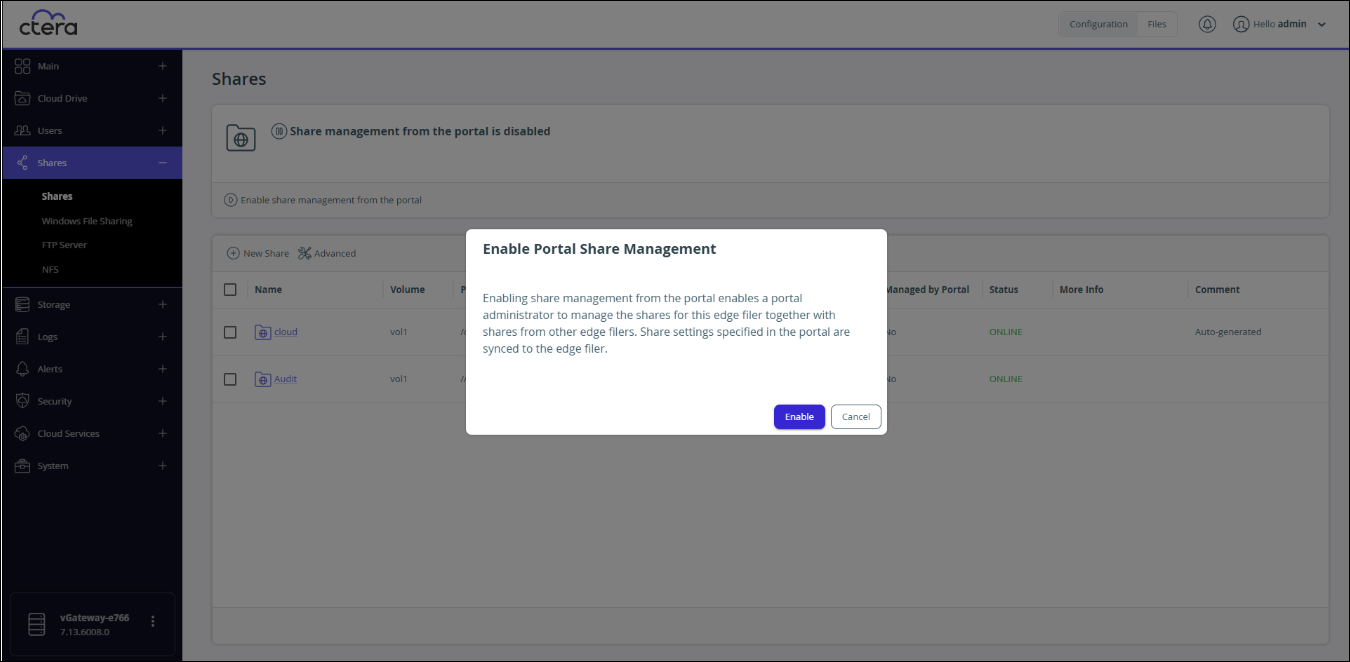
One thing to know: once a share is set up in the CTERA Portal for multiple Edge Filers, it can’t be modified on any of the Edge Filers. That’s the point: you maintain one source of truth, and you avoid mismatched settings from the same share being edited in several places.
Step 3: Create a share in the Portal
In the CTERA Portal, create the share directly in the portal user interface in Global File System > Shares. See Configuring Shares for the full walkthrough.
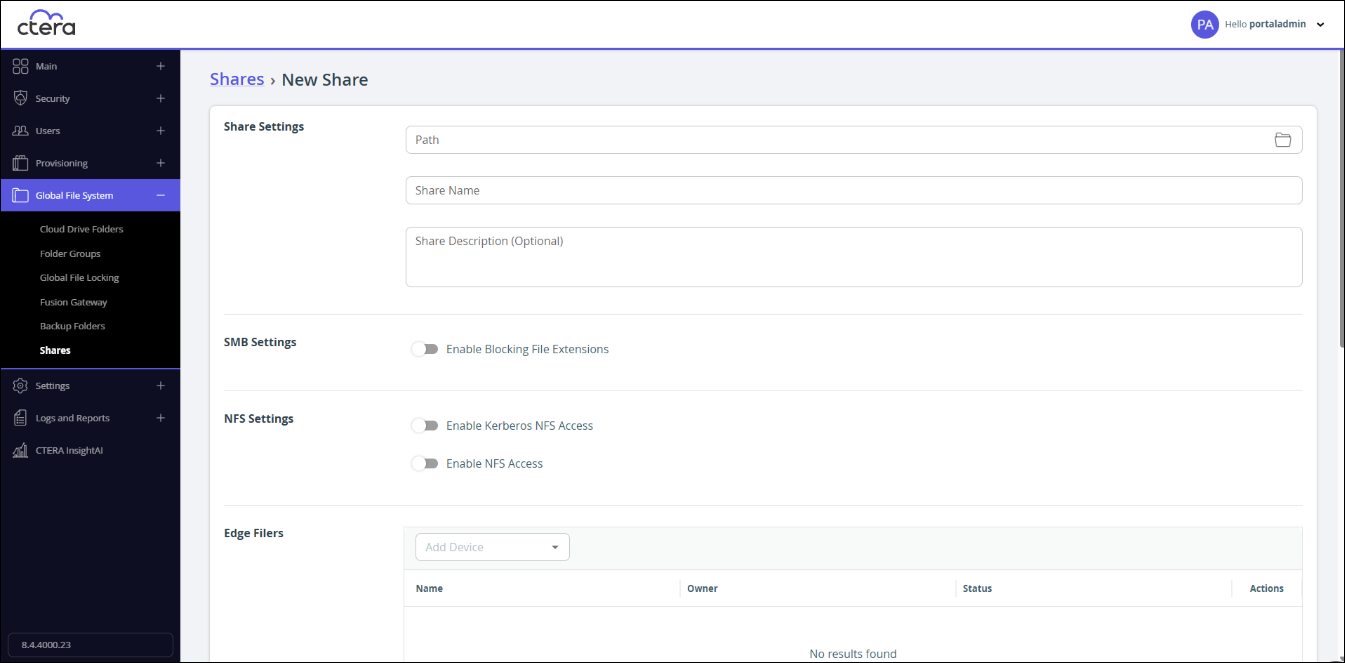
On the New Share page, specify where you want the new share and what to name it. Also:
- Set the protocol configurations to access the share for both SMB and NFS.
- Specify the Edge Filers which will include this share and the access permissions you want for the share.
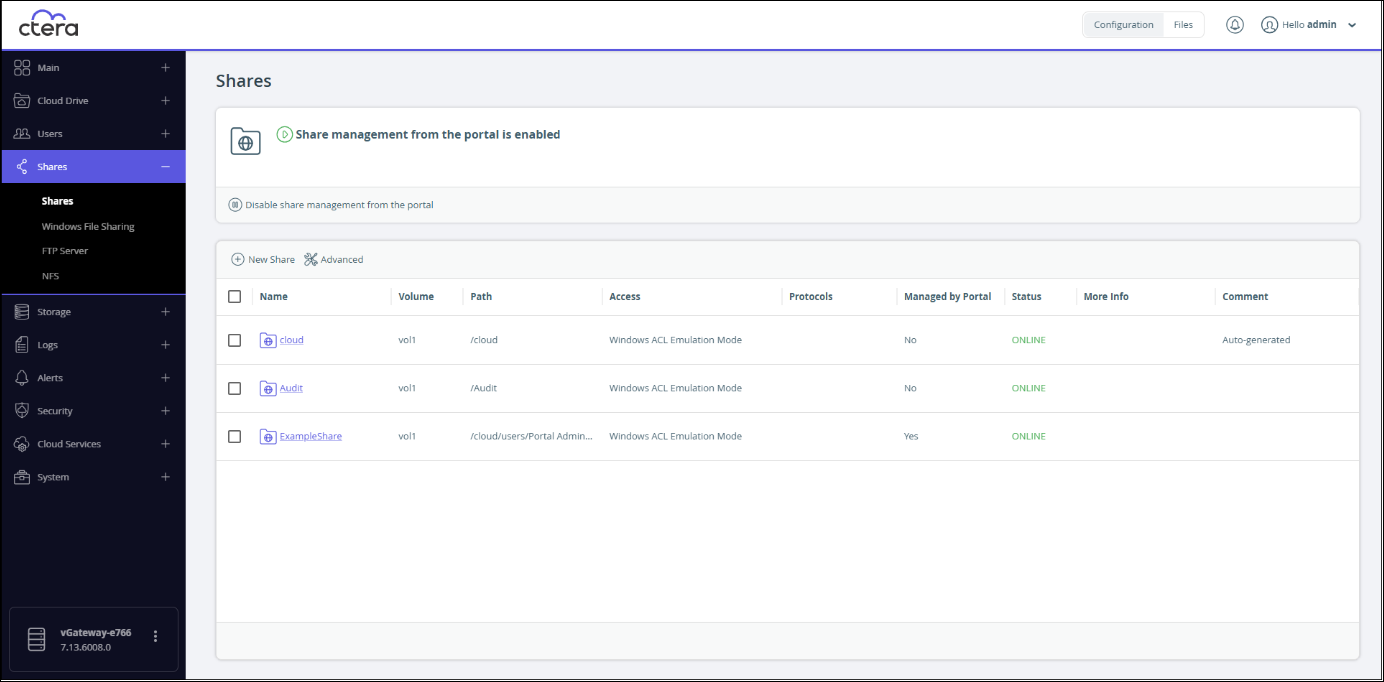
Once you save, the share is added to those Edge Files right away and appears in your Shares list.
Editing a Centrally Managed Share
Need to change a permission or add another site? You can also make the changes you want in the central share management page on the CTERA Portal. See Editing a Share.
Why Centralized Share Management Matters: A Feast of Benefits
The steps are simple, but the payoff is what makes them worth taking.
- Time back, every time. Rolling out a share to five sites no longer means five rounds of configuration. It’s one, and the same goes for every later change, whether to permissions, blocked file types, or access hosts.
- Consistency you can trust. Every CTERA Edge Filer gets the same configuration, so settings never fall out of step between sites, and nobody has to guess which version is right.
- Fewer surprises. Real-time validation and conflict prevention catch problems while you’re configuring, not after users report that something doesn’t work.
- Visibility where you need it. Per-share status lets you confirm a change landed, or spot where it didn’t, without logging in to each CTERA Edge Filer.
- Control in the right hands. The Edge Filer Management permission lets you decide who can assign shares to which devices.
- Easier growth. New office, region, or workload? Enable share management on the new Edge Filer and attach the shares it needs. File services go wherever the organization goes, without starting over.
It also helps new administrators get up to speed faster, since there’s one place to look to understand how access is set up.
The Power of Time and Centralization
Centralized Share Management is a practical, everyday way of saving time, which, especially in a season of gratitude, is something to celebrate.
Frequently Asked Questions about Centralized Share Management
-
What is Centralized Share Management in the CTERA Portal?
Centralized Share Management is a feature introduced in CTERA Portal 8.4 that lets administrators create, edit, and delete cloud-level file shares for multiple CTERA Edge Filers from a single Portal interface. Share configurations sync to the selected Edge Filers in near-real time.
-
Which CTERA Edge Filer versions support Centralized Share Management?
CTERA Edge Filers must run version 7.13.x or later. Each Edge Filer must also be enabled for share management from the Portal, under Shares > Shares on the Edge Filer.
-
What permission is needed to manage shares from the CTERA Portal?
Administrators need the Edge Filer Management permission. It allows them to select and manage which CTERA Edge Filers are assigned to specific shares.
-
Can a centrally managed share still be edited on a CTERA Edge Filer?
Only if the share is assigned to a single CTERA Edge Filer. Once a share is assigned to more than one Edge Filer, it can only be edited from the Shares page in the CTERA Portal, which prevents conflicting settings across sites.
-
Does Centralized Share Management support SMB and NFS shares?
Yes. The New Share page in the CTERA Portal includes the mandatory SMB settings, which are always enabled for the shares, such as blocking specific file extensions, and NFS settings, including NFS access and Kerberos NFS access. In addition, if a share that lives on only one Edge Filer is renamed or remapped there, the change is synced up to the CTERA Portal in real time.
-
How quickly do share changes reach the CTERA Edge Filers?
CTERA’s documentation describes near real-time synchronization of share configurations. A new share is added to the selected CTERA Edge Filers immediately, and the CTERA Portal shows the share’s status on each Edge Filer.
-
 Technical Marketing Writer
Rachel Segal is a technical marketing writer with more than 20 years of experience in content writing and editing. She joined CTERA in 2023 as a technical writer before moving into her current role in 2025. Her background also includes MBA admissions consulting, news editing, and memoir ghostwriting. She began her career in journalism at CNN and later spent a decade as a journalist in the diamond industry.


