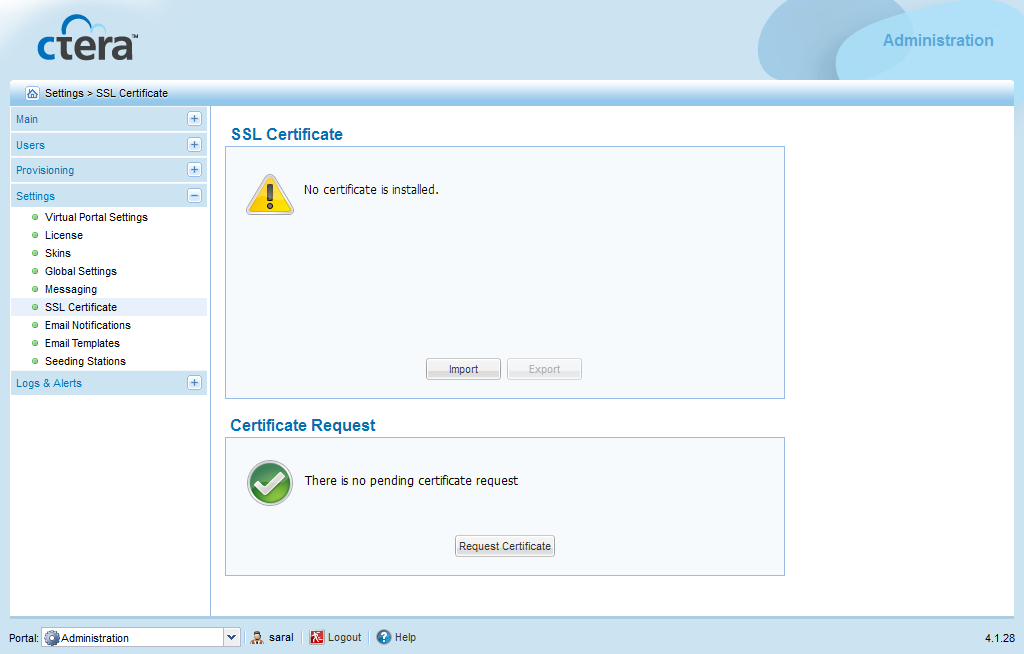
The Settings > SSL Certificate page appears.
The Create a Certificate Request Wizard opens.
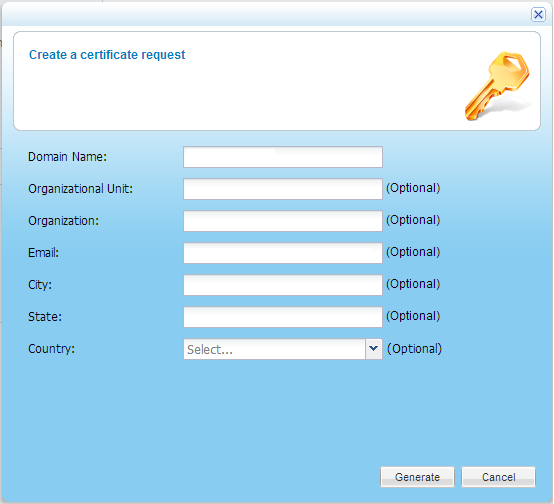
The value entered must match the type of certificate you chose to use. For example, if you chose a wildcard certificate, the domain name might be *.acme.com.

In contrast, if you chose a domain certificate, the domain name might be company01.acme.com, where company01 is the name of your virtual portal.

These fields are optional
A keypair is generated and stored on the portal.
The Download a certificate request screen appears.

The certificate request file certificate.req is downloaded to your computer.
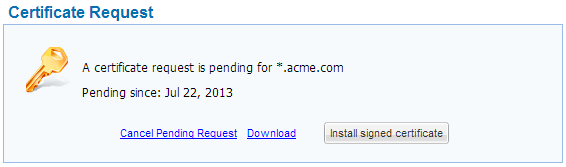
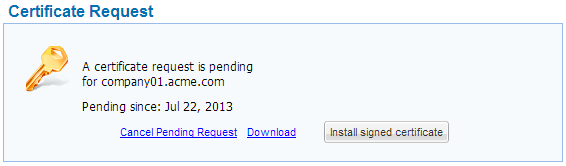
The Settings > SSL Certificate page's Certificate Request area indicates that the certificate request is pending.
If you issued a wildcard certificate request, the area appears as follows:
If you issued a domain certificate request, the area appears as follows:
|
Warning |
|
|
When you generated the CSR, a |
|
In this field... |
Do this... |
|
Domain Name |
Type the domain name for which you would like to request a certificate. If multiple virtual portals are configured, each virtual portal has its own DNS name. In this case, the SSL certificate should be a wildcard certificate, that is, the DNS name embedded in the certificate should start with "*". If you have only one portal, and do not intended to configure multiple virtual portals, then it is sufficient to purchase a regular SSL certificate (not a wildcard certificate). To request a certificate that specifies multiple alternative names, type the multiple names in this field, separated by semicolons. The certificate will include the |
|
Organizational Unit |
Type the name of your organizational unit. This field is optional. |
|
Organization |
Type the name of your organization. This field is optional. |
|
City |
Type your city. This field is optional. |
|
State |
Type your state. This field is optional. |
|
Country |
Select your country. This field is optional. |
|
